Calendar
The calendar speaks JMAP Calendars (RFC 8984). Bulwark reads the capabilities the server advertises at session start and hides whatever that server cannot actually do, so you never click something that fails.
Views
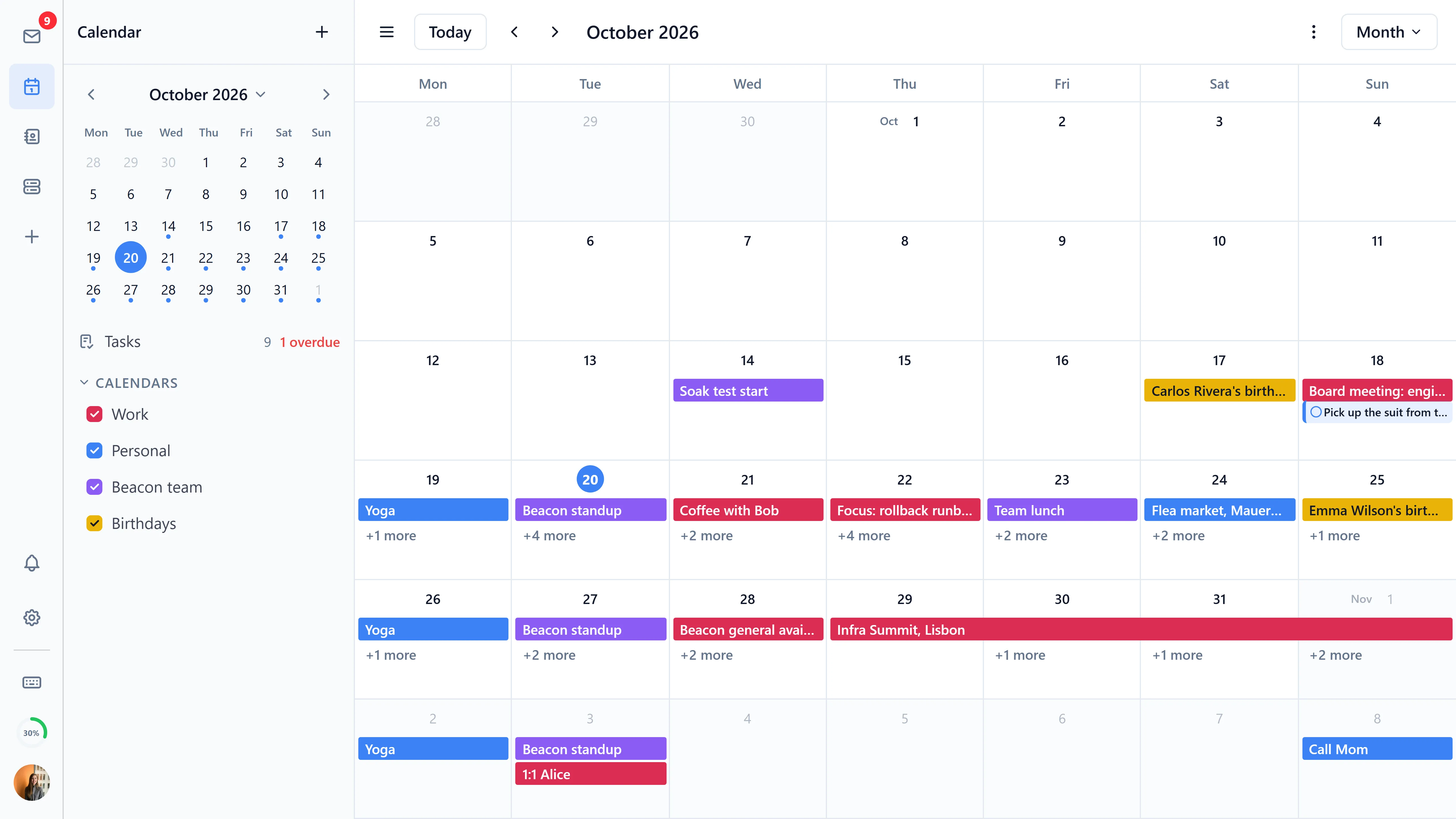
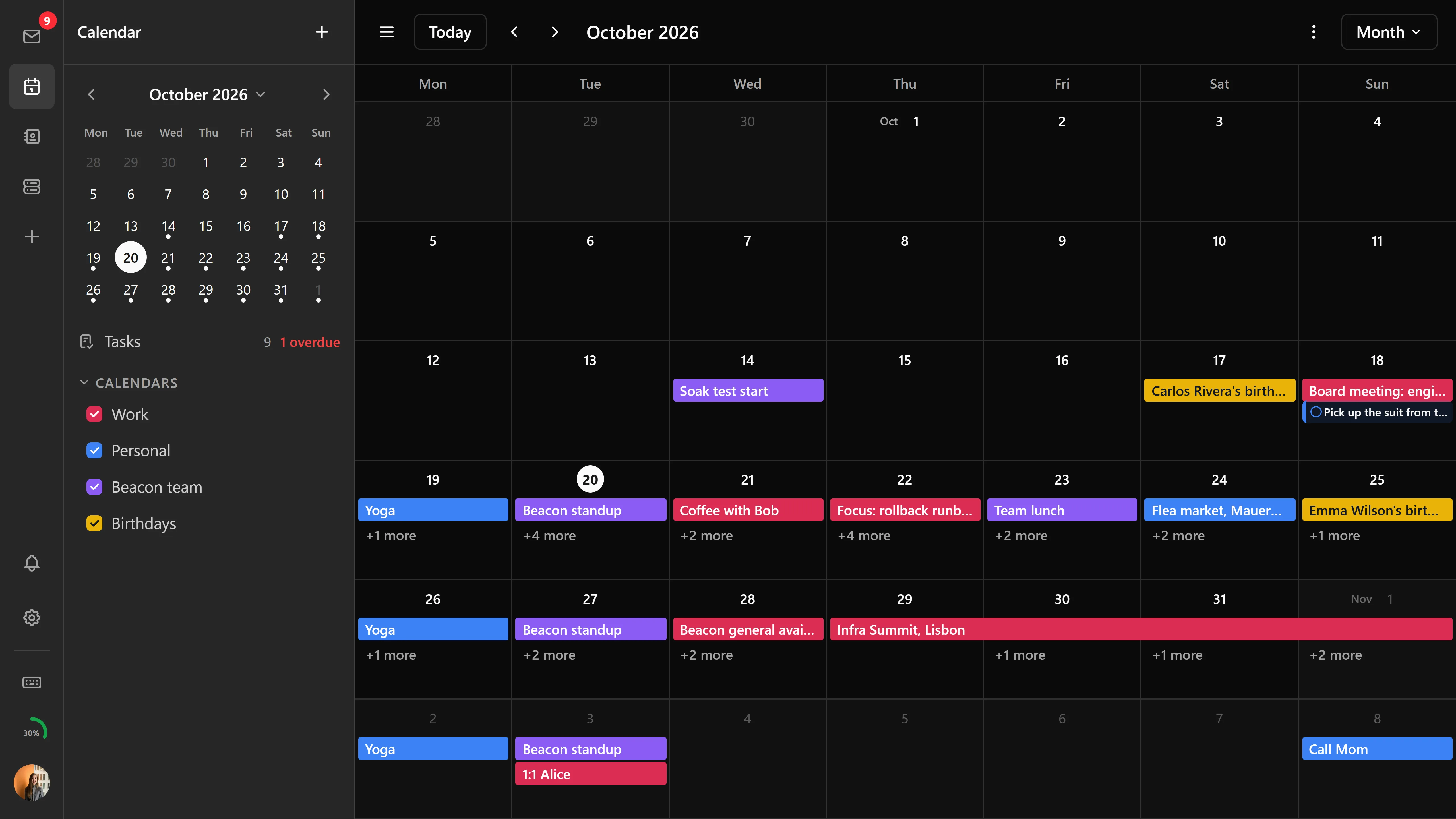
- Month view - Overview of the entire month with multi-day event spanning
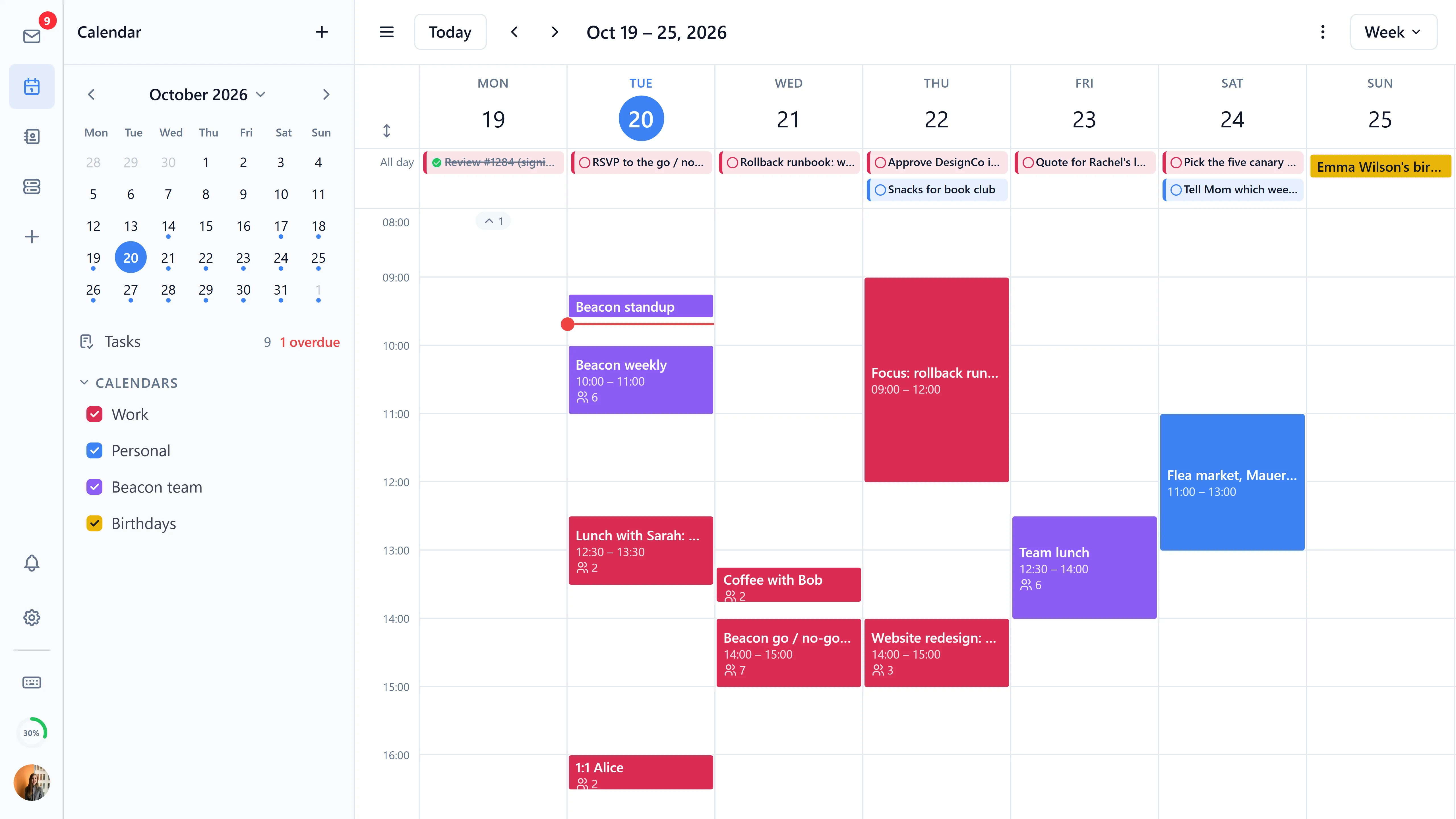
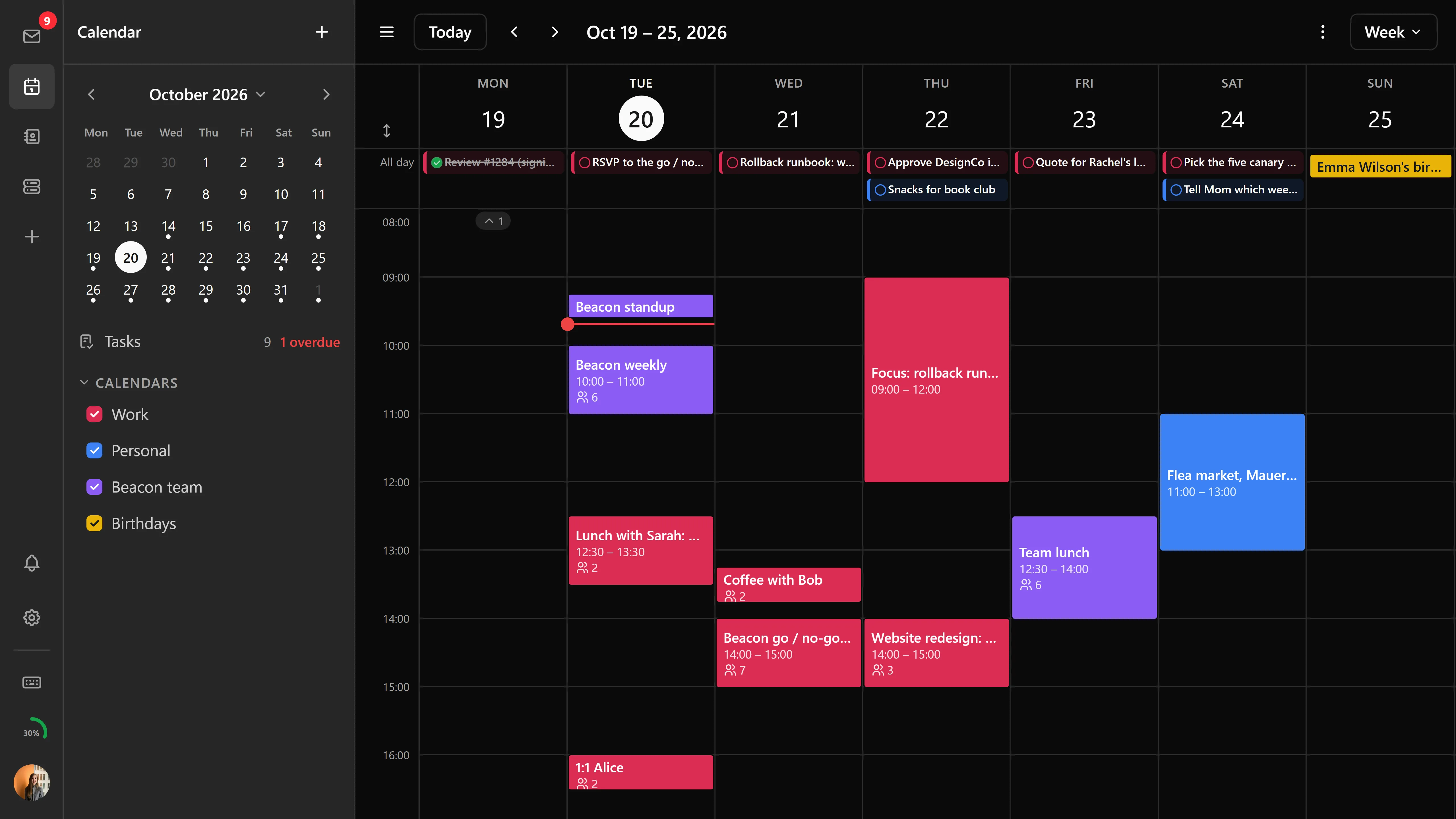
- Week view - Detailed weekly schedule with column-based overlap layout and time-based event sorting
- Day view - Hour-by-hour daily agenda
- Agenda view - Chronological list of upcoming events, loading more as you scroll
- Task list view - Dedicated task management view with task details, status tracking, and inline editing
Month, week and day views scroll freely: keep scrolling past the end of the month and the next one follows, rather than snapping a period at a time. The toolbar's date label and the mini-calendar follow the week in view. If you preferred the paged behaviour, Free scrolling in calendar settings turns it off.
Toolbar navigation
The desktop toolbar carries prev/next buttons, a "Today" button, and a date label, so moving around the calendar doesn't mean going back to the mini-calendar every time.
Creating events
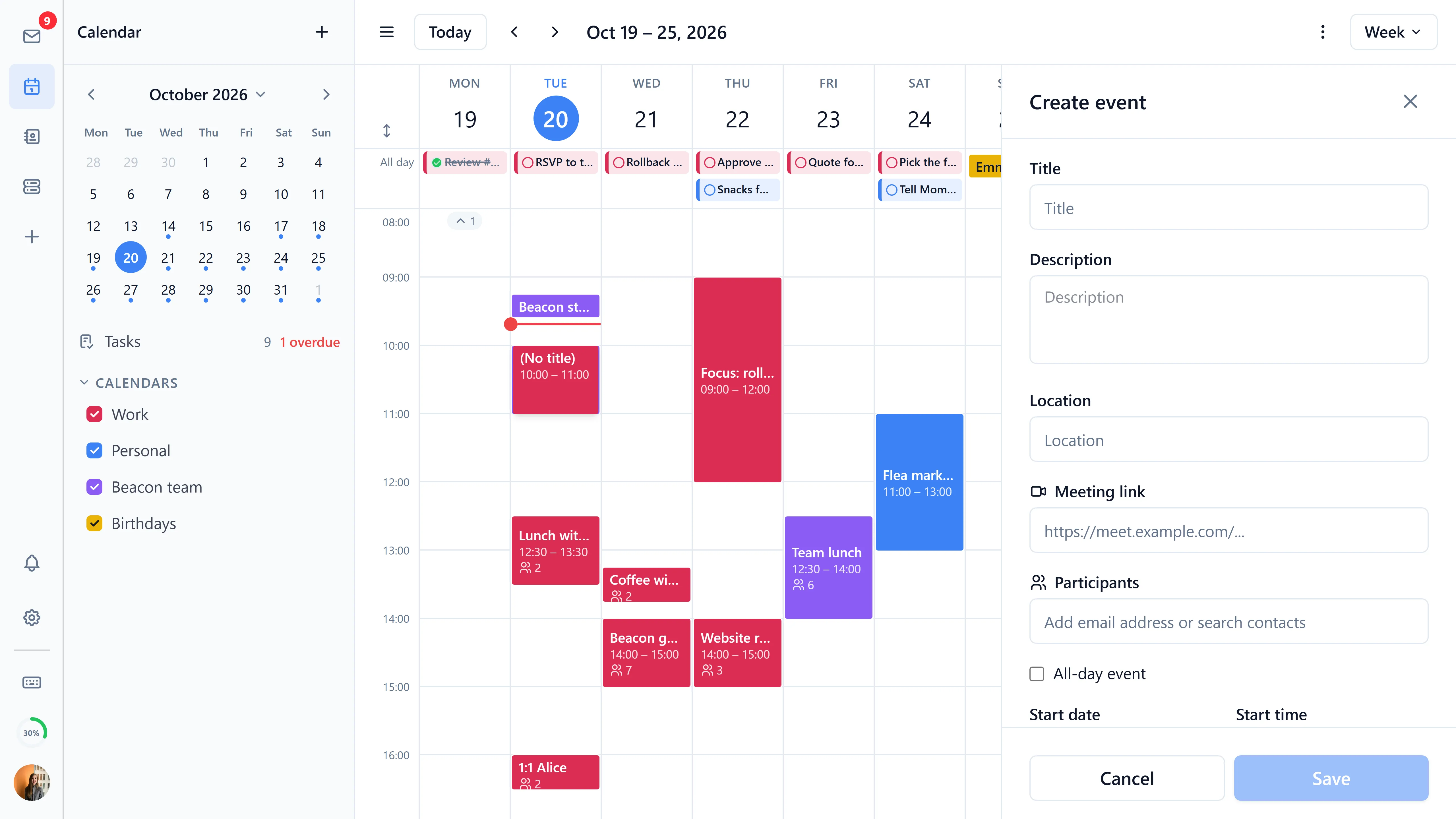
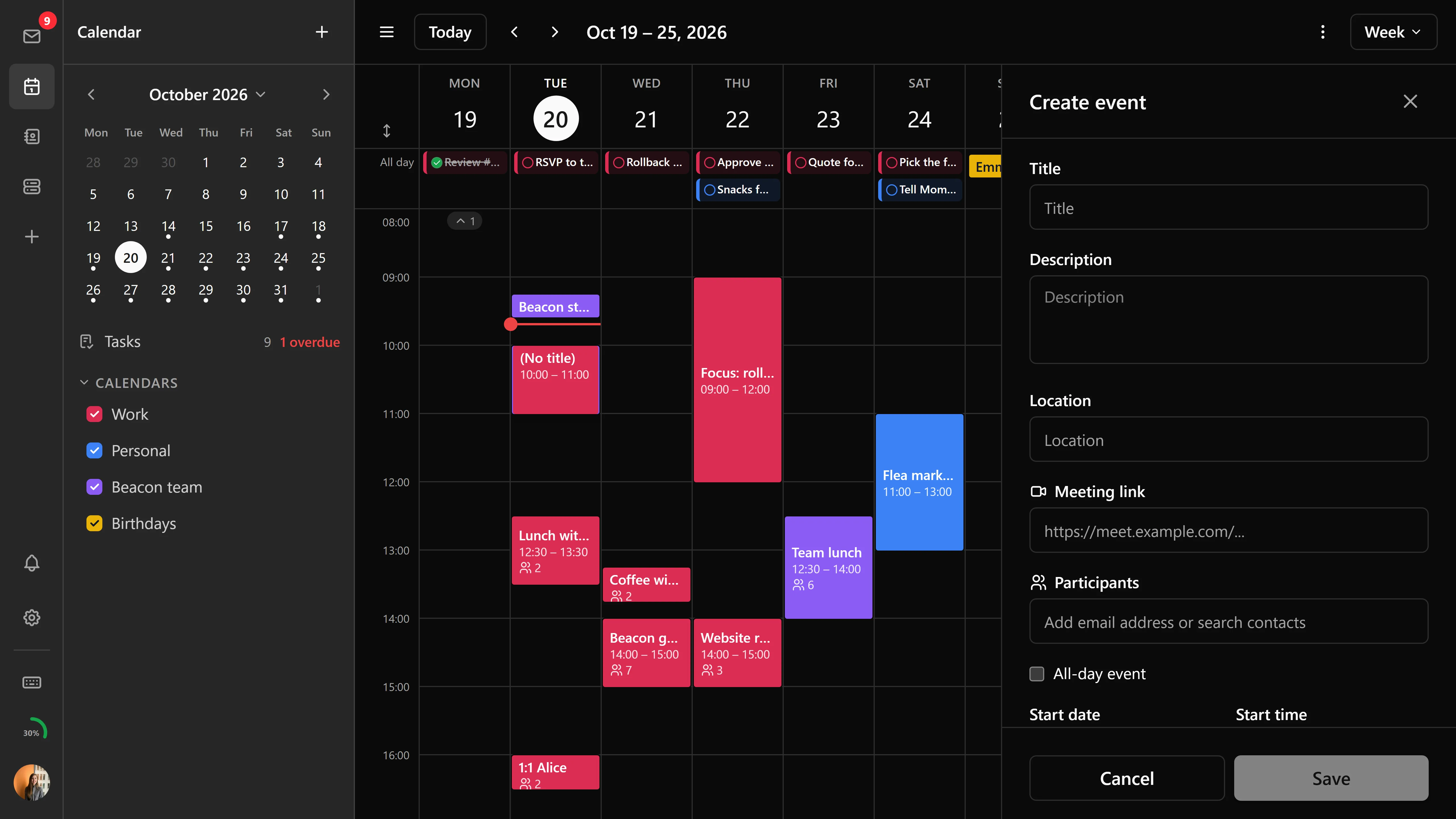
Click any time slot, or use the "New Event" button, to create an event:
- Title and description
- Start and end time with automatic timezone detection
- All-day events
- Recurrence rules (daily, weekly, monthly, yearly) with client-side recurrence expansion
- Reminders as notifications or emails, taken from the calendar's defaults or set per event (see Reminders)
- Participant scheduling with contact autocomplete
- Virtual location input for online meetings and video calls
Quick create
- Double-click on an empty time slot for quick inline event creation (1-hour default)
- Click-and-drag on empty slots to create events spanning a custom time range (15-minute snap)
- Double-click in month view opens the event modal with the date pre-filled
Reminders
Each reminder fires a set time before the event starts, either as a notification in Bulwark or as an email.
Notifications are shown by Bulwark itself while it is open, with the sound you pick in the notification settings. Emails are sent by the mail server, so they arrive even when Bulwark is closed. Stalwart sends them; other JMAP servers may store email reminders without ever sending them.
Calendar default reminders
Every calendar you own can have default reminders, with one list for events with a time and one for all-day events. Set them in Settings > Calendar > Calendar Management with the bell button next to the calendar. All-day reminders count from midnight at the start of the day, so "1 day before" fires at midnight the day before.
A new event starts with its calendar's defaults. The event editor shows them read-only and follows the calendar and the all-day switch as you change them. To set the event's own reminders, click Customize: the defaults are copied into rows you can edit, remove or add to. Use calendar defaults switches back.
When an event is saved with the defaults, Stalwart copies them into the event. Changing a calendar's defaults later doesn't change events that already exist; they keep the reminders they were saved with. To give an existing event the current defaults, open it, click Customize and then Use calendar defaults, and save.
Reminders that the editor can't show as rows, such as ones at a fixed date and time or after the start (often created by other calendar apps), are kept unchanged when you save the event.
Event management
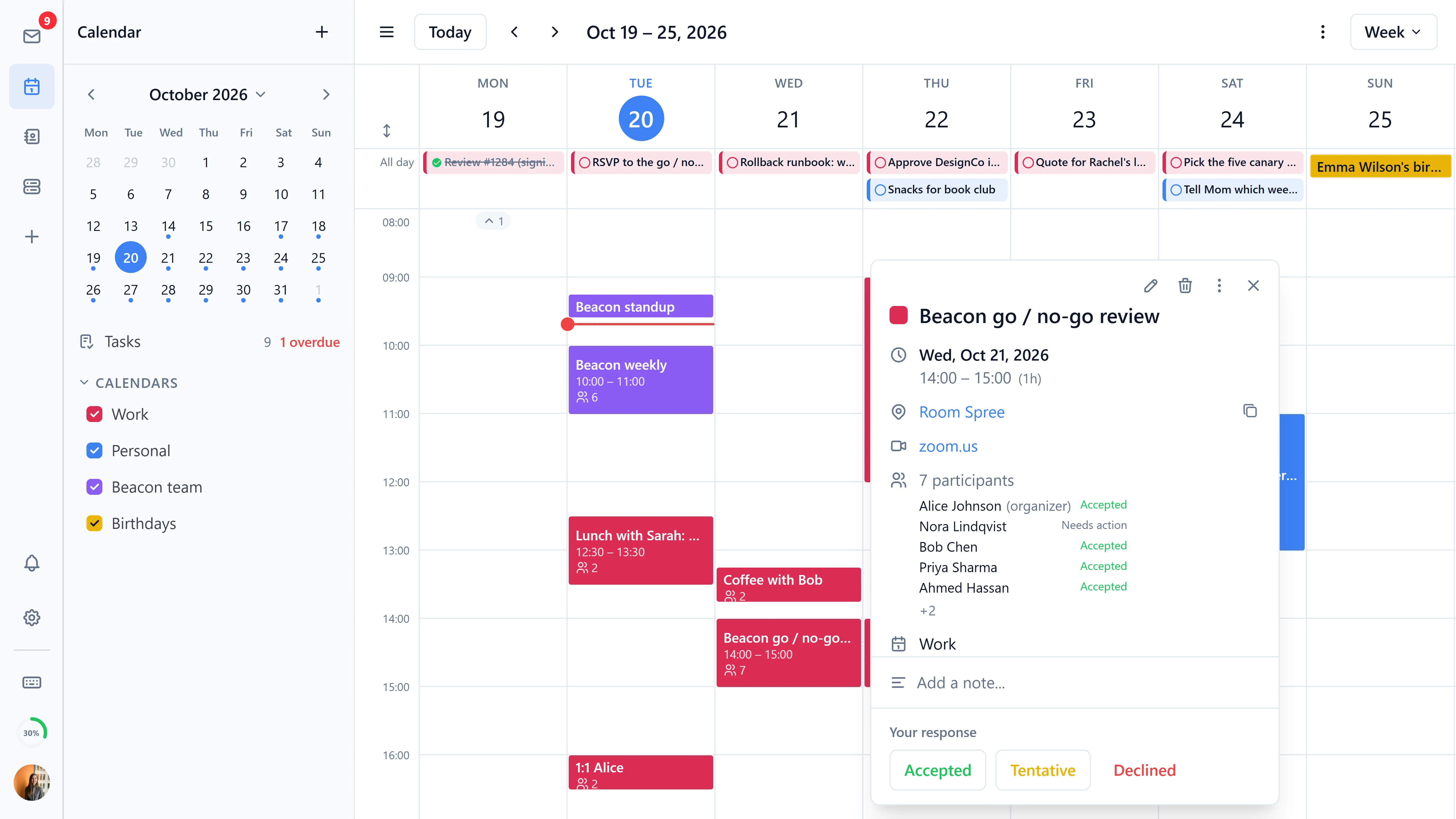
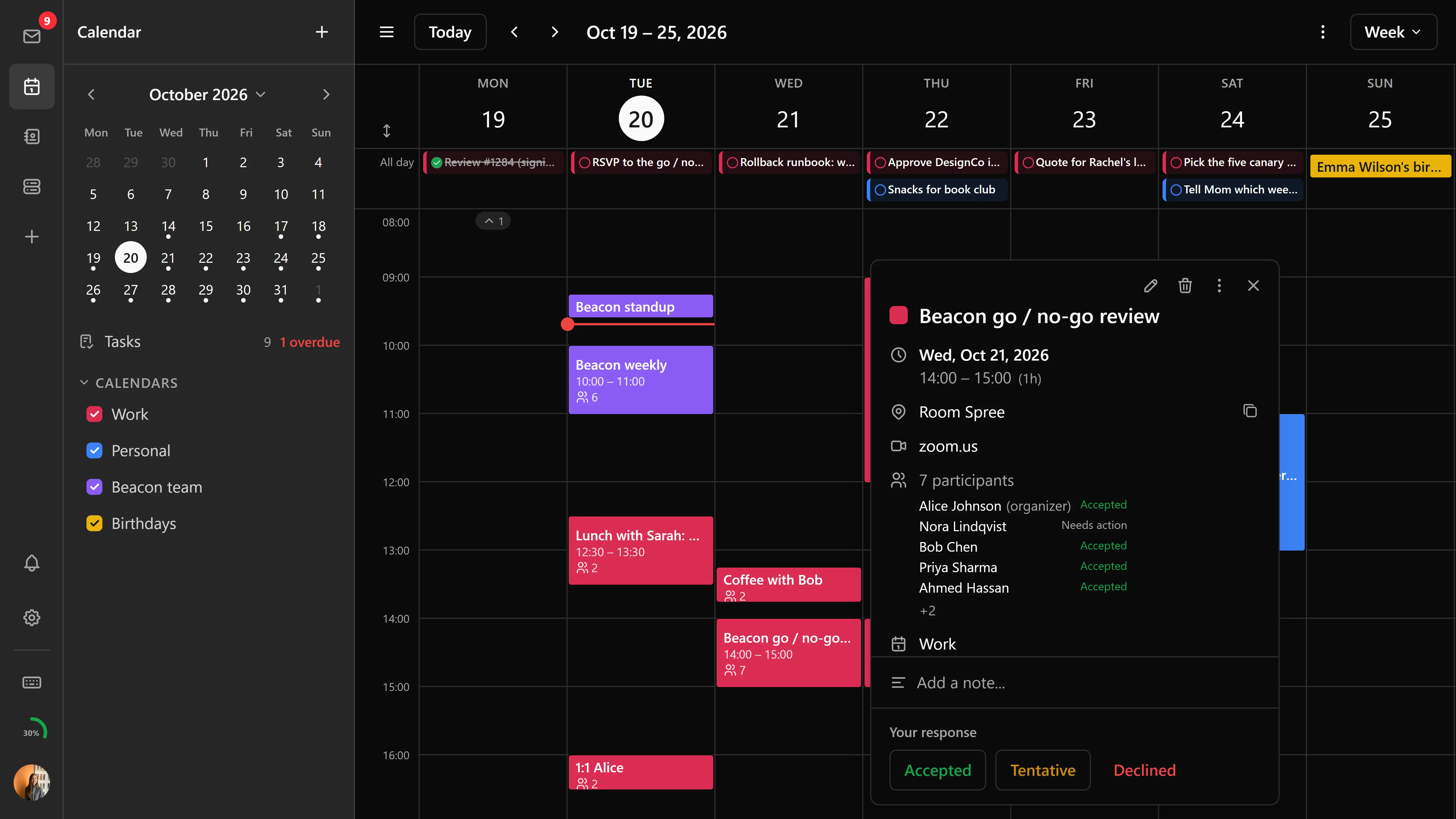
- Drag-and-drop rescheduling - Move events between time slots in week/day views or between dates in month view
- Resize events - Drag the top or bottom edge to change duration with 15-minute snap;
utcEndis recalculated as duration changes - Duplicate events - Clone an event with a +1 day offset for editing
- Recurring event editing - Choose scope: this event, this and following, or all events. Each occurrence is addressed by the synthetic id Stalwart assigns it, so an edit to one Tuesday cannot land on another
- Overlap layout - Events that overlap are laid out in columns rather than stacked, so none of them gets truncated
- Timezone-aware formatting - Event start times display in the user's locale and timezone consistently across grids, popovers, and import previews
Sharing and invitations
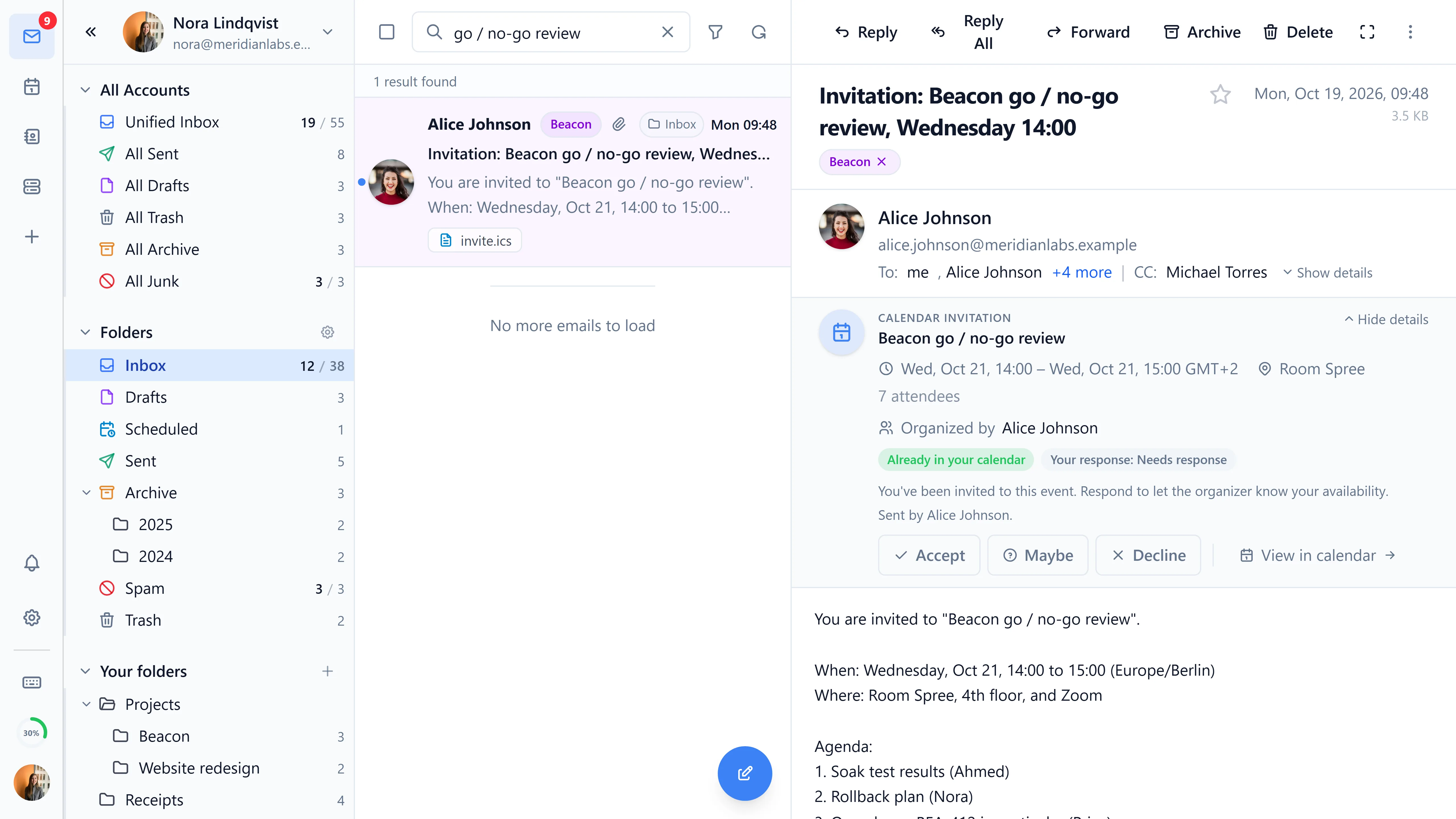
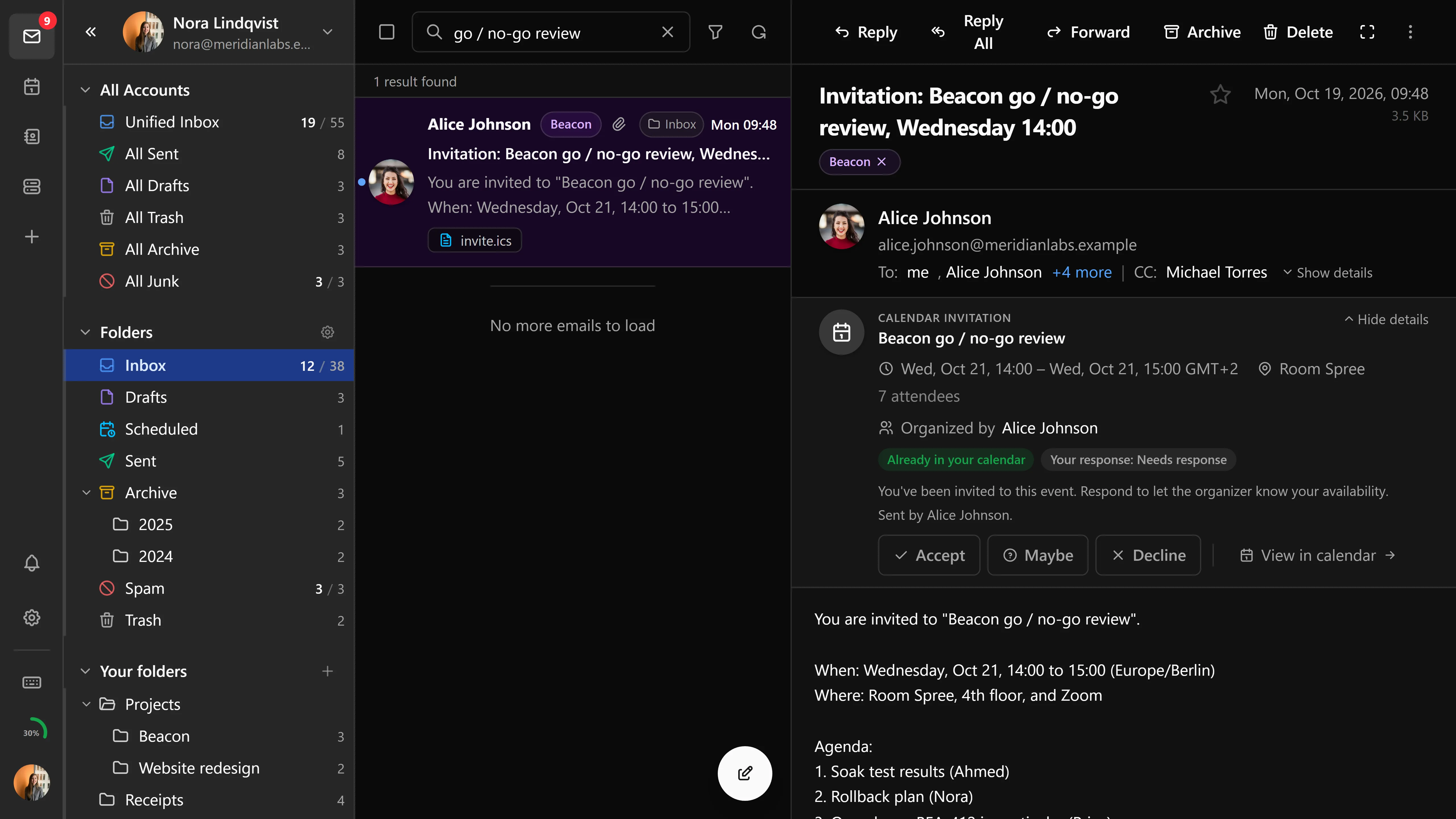
- Send iMIP invitations on event create and update (RFC 5545 / 6047), with
calendarAddressandreplyToparticipants for Stalwart compatibility - Accept/decline/tentative RSVP responses with trust assessment
- Organizer and attendee UI with participant management, including each attendee's free/busy status (
Principal/getAvailability) while you pick a time - Invitations and updates that arrive as
CalendarEventNotificationobjects surface in the app, and invitations you send go out under your defaultParticipantIdentity - Inline calendar invitation banner in the email viewer - auto-detects
.icsattachments and offers RSVP and import-to-calendar actions - Collapsible details on the invitation banner
- ICS attachments are hidden from the attachment list when the invitation banner is shown
- Shared calendars across accounts via JMAP sharing, with per-viewer colors so each user can recolor a shared calendar without affecting others (#345)
Pending event preview
While you are creating or moving an event, the calendar grid and the event modal both show it in its pending position, before anything is saved.
Hover preview
Hovering an event opens a popover with its time, location, participants, and description, so you don't have to open the modal to read it. The delay and the trigger are configurable.
CalDAV discovery
Bulwark includes a CalDAV discovery API that resolves each account's calendar home automatically. In a multi-account setup, every account's calendars are found and loaded without per-account configuration.
.ics file still works, as does everything that is plain JMAP.Multiple calendars
Create and manage multiple calendars with different colors. Toggle visibility of individual calendars using the mini-calendar sidebar.
Birthday calendar
Bulwark auto-generates a read-only birthday calendar from your contacts. February 29 birthdays are clamped to a valid day in non-leap years. The birthday calendar can be toggled in calendar settings.
Week numbers
An optional setting allows displaying ISO week numbers in the mini-calendar for quick reference.
Calendar management
Calendar management settings include mailbox role reassignment controls, letting you change which calendar is the default or reassign special roles between calendars.
Shared calendar grouping
Calendars shared with you are grouped separately in the sidebar, below your own.
iCalendar import
Import .ics files with a preview dialog and bulk event creation. Batch event import is supported for importing large .ics files with multiple events.
iCal and webcal subscriptions
Subscribe to external calendars via iCal or webcal URLs. Subscribed calendars appear alongside your own and refresh automatically. Subscription settings can be edited after creation, including URL, refresh interval, and display options.
Bulwark's server fetches the feeds. If it has to go through a proxy to reach the internet, set NODE_USE_ENV_PROXY=1 with HTTPS_PROXY.
Real-time updates
Calendar state changes are pushed in real-time via JMAP push - no manual refresh needed. Push reconnects automatically across network blips and preserves any active search/filter state.
Event notifications
- Notification reminders are evaluated in the browser and shown as toasts; email reminders are left to the server
- Configurable notification sound
- Events for the next 24 hours are fetched ahead of time so alerts fire on schedule
Tasks
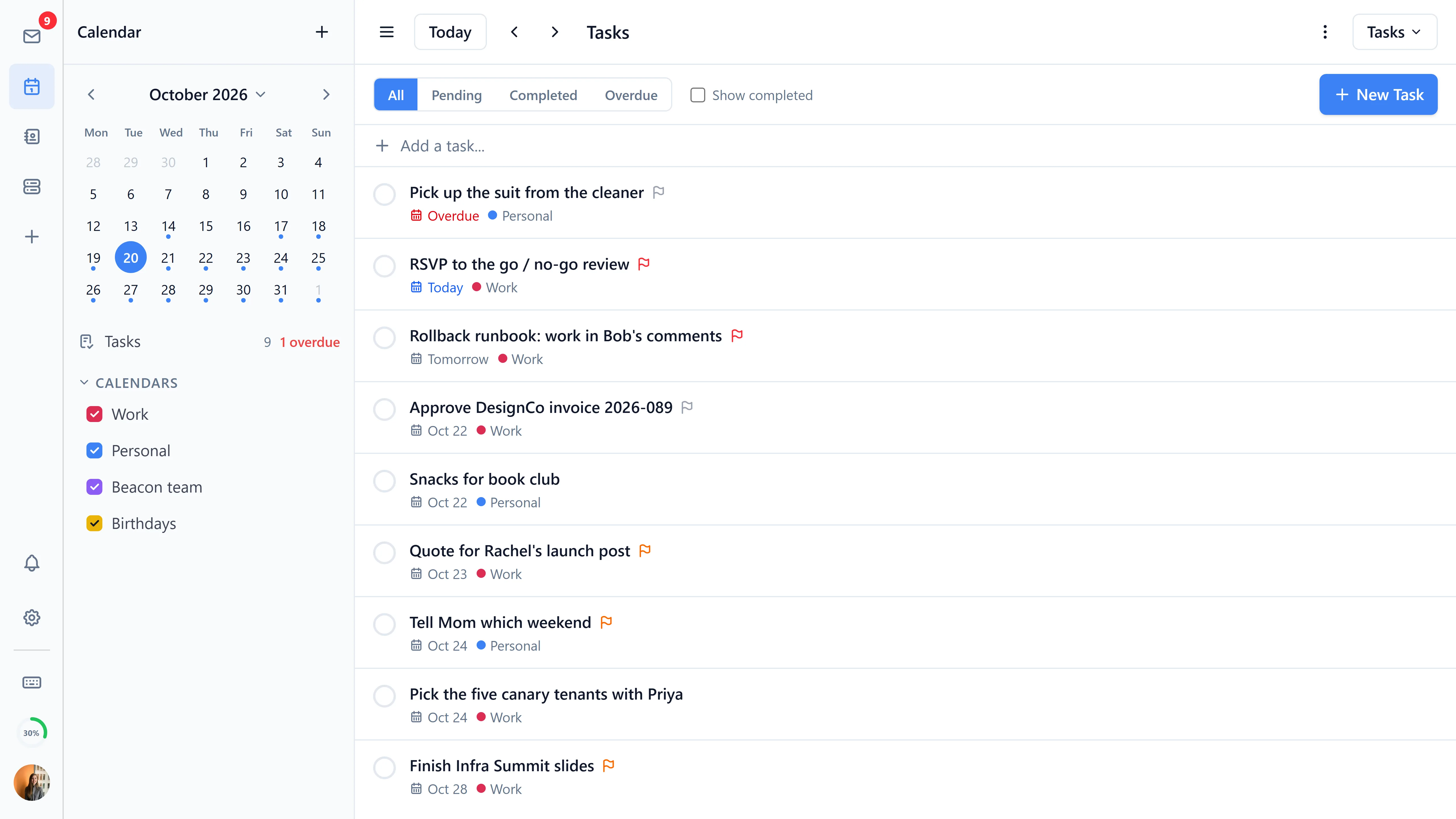
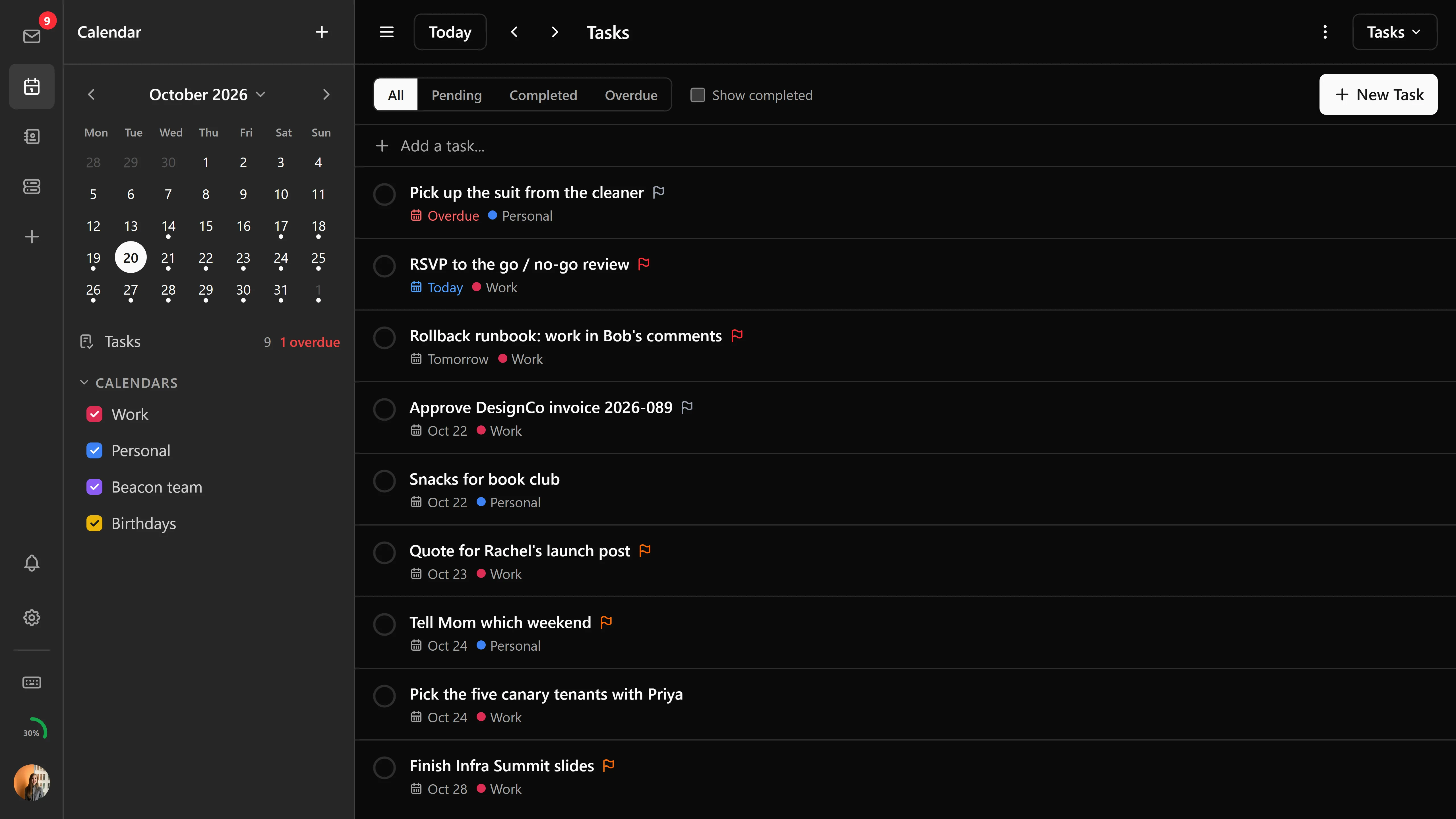
A dedicated task list view manages tasks with due dates, priority, and completion status. Tasks created by external CalDAV clients (such as Thunderbird) are detected and displayed alongside Bulwark-created tasks. Updates and deletions for synthetic JMAP IDs fall back to destroy-and-recreate when the server can't update them in place.
Plugin integration
Calendar events support action slots for plugins. For example, the bundled Jitsi Meet plugin adds a "Start Meeting" button on calendar events with virtual locations.
Settings
- First day of week (Sunday or Monday)
- Time format (12h or 24h) applied across calendar grids, event cards, popovers, and import previews
- Default calendar view
- Show event start time in month view
- Show week numbers in mini-calendar
- Locale-aware date formatting
- Persisted view preferences are validated so the calendar always falls back to a supported view mode